
Who This Guide Is For
You already have a Shopify chat app (Tidio, Gorgias, Zipchat, Chatty, Rep AI, Shopify Inbox, etc.) and you want to move to Carti. Or maybe you're evaluating what a real cutover looks like before you commit.
This playbook is written for merchants and operators, not developers. Where Shopify's own docs clarify behavior, we link out so you can go deeper. If you're still in the research phase, our Shopify chatbot hub is a good starting point, and how to add a chatbot to Shopify covers installation basics.
How Installing a Shopify App Actually Works
When you install an app from the Shopify App Store, the flow is roughly:
- You click Install on the app listing.
- Shopify shows a permissions screen listing what the app needs access to (read products, read content, customer data, etc.). You approve or cancel.
- The app becomes installed on your store. Embedded apps open inside your Shopify admin. Some also add theme pieces or customer-facing scripts.
- The app receives credentials so it can call Shopify's APIs on your behalf. You don't manage tokens yourself.
Shopify has been moving toward managed installation for partners, with fewer redirects and clearer updates when an app needs new permissions. That's mostly invisible to you as a merchant. You still see permission prompts when an install or permission change requires it.
What you need to know: every app gets its own separate set of permissions. Installing Carti does not inherit anything from your old chatbot. Carti requests its own access, and you approve fresh.
Storefront Chatbots and Your Theme
Modern Shopify apps integrate with the online store using theme app extensions instead of pasting code directly into your theme files.
Why this matters for migration:
- Online Store 2.0 themes use JSON templates. Merchants add app blocks in the theme editor or turn on app embeds in the App embeds panel.
- When an app is built this way, uninstalling the app removes its theme integration cleanly. Shopify removes blocks associated with uninstalled apps automatically.
If your old app is one of the older apps that pasted code directly into your theme, you may still have orphan code left behind. That's store-specific, so you or your developer will need to check the theme or follow the old vendor's removal docs.
Action item: check whether your current widget came from Theme editor, App embeds or from Edit code. The second case needs a manual cleanup pass after uninstall.
What Can Be Migrated vs What Cannot
| Asset | Typical migration reality |
|---|---|
| Product catalog, collections, product pages | No migration needed. Carti reads from Shopify. Your source of truth stays Shopify. |
| Store policies, pages, blog | No migration needed here either. Re-synced from Shopify depending on the app, not imported from the old vendor. |
| Full chat transcripts | Rarely portable. Most vendors don't offer a way to export to another tool. Plan on archiving old logs if you need them for compliance. |
| Trained FAQ / AI memory | Vendor-specific. Expect to re-train through Carti's onboarding (catalog and content), not a one-to-one import. |
| Automations, macros, helpdesk rules | Don't transfer. If you used Gorgias-style tickets, those rules live in the helpdesk. Carti is storefront sales-first, a different product class. |
| Billing | Cancel or downgrade the old app in its billing settings after cutover, so you're not double-charged. |
| Theme cleanliness | Modern app extensions are usually auto-cleaned on uninstall. Older apps that pasted code into your theme need manual cleanup. |
When an app is uninstalled, Shopify automatically cleans up that app's background connections and scripts. As a merchant, you'll normally uninstall from Settings → Apps and sales channels. If you want the technical details, Shopify documents the full cleanup behavior in their app uninstall API reference.
Pre-flight Checklist (Before You Touch Production)
- Pick a maintenance window if you have heavy chat usage, or do it quietly if volume is low.
- Screenshot / export anything you need from the old vendor (transcripts, FAQ exports if offered).
- Identify how the old widget was added to your theme. Was it through the theme editor app embed, or was code pasted in manually?
- Open a preview / duplicate theme (optional but smart) to test Carti before you pull the old widget.
- List paid add-ons on the old app (AI packs, flows, extra seats) so you cancel the right subscriptions.
Migration Steps (Recommended Order)
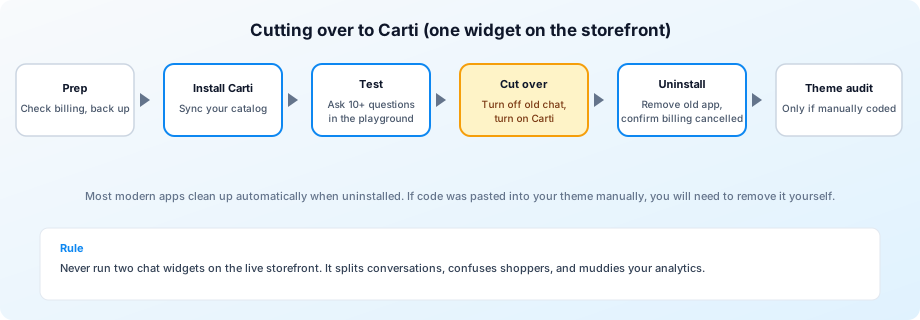
Phase A: Install Carti without confusing customers
- Install Carti from the Hey Carti listing.
- Complete in-app onboarding: connect the store if prompted, let the app sync catalog and content.
- In Carti (and in Shopify Settings → Apps and sales channels), confirm the app shows Active.
- Don't enable the customer-facing widget on the live theme yet if your old chat is still active. Use a preview theme or password-protected development store to validate answers on real products.
Phase B: Validate quality on your catalog
Run 10 to 20 real questions you see in support: comparisons, sizing, "is it in stock," policy edge cases, bundles.
- If something is wrong, fix your data in Shopify (product descriptions, policies) first. Chatbots read what you publish.
Phase C: Cut over (one widget rule)
One customer-facing chat widget on the live storefront. Two bubbles means split data and shopper confusion.
- Disable or hide the old app's storefront widget from its dashboard (exact toggle name varies).
- Enable Carti's app embed in the theme editor following Carti's onboarding.
- Publish theme changes if the theme editor prompts you.
Phase D: Monitor, then uninstall the old app
- Monitor Carti conversations for 3 to 7 days.
- When satisfied, open Settings → Apps and sales channels in Shopify admin, select the old chat app, and uninstall.
- Cancel billing with the old vendor if uninstall doesn't auto-cancel. This depends on the vendor, so verify in their billing portal.
- Theme audit: if the old app used manual code, open Online Store → Themes → Edit code and remove leftover snippets per the old vendor's docs.
Phase E: Ops and expectations
- Escalations: decide whether email, helpdesk, or phone catches what the bot escalates. Carti is not a full replacement for a multi-channel helpdesk unless you design that workflow.
- Analytics baseline: note conversion and chat volume the week before the switch so you can compare after. See Shopify chat AI ROI metrics and the ROI calculator for benchmarks.
Vendor-specific Notes (High Level)
Use these as add-ons to the phases above, not replacements:
| You are leaving… | Extra gotcha | Deeper read |
|---|---|---|
| Tidio | Lyro + Flows billing stacks. Disable widget before you end up with two bubbles. | Tidio alternatives |
| Gorgias | Helpdesk vs storefront. You may keep Gorgias for email and use Carti for onsite chat. | Gorgias alternatives |
| Zipchat | Agent configuration habits, retest prompts under Carti | Zipchat alternatives |
| Chatty | Often simple embed, fast cutover, watch manual theme code | Chatty alternatives |
| Shopify Inbox | Native free chat. Uninstall isn't always "migration." You may add Carti while retiring the Inbox widget. | Inbox vs AI |
For side-by-side breakdowns, see our comparison pages, and if you're still choosing a destination, the best chatbot for Shopify roundup puts every major vendor on one scorecard.
Frequently Asked Questions
Q: Will uninstalling my old app break my theme?
Probably not, if the old app used theme app extensions (which most modern apps do). Shopify automatically removes those blocks when you uninstall. The exception is apps that had someone manually paste code into your theme files. In that case, you'll need to go into Edit code and remove the leftover snippets yourself. If you're not sure which applies, check whether the widget appears under Theme editor, App embeds (safe to uninstall) or in the theme code directly.
Q: Do I lose SEO or site speed?
Swapping one well-built chatbot for another shouldn't affect either. Both load in the background without slowing your pages. The real risk is running two heavy widgets at the same time or leaving broken code behind after an uninstall. That is exactly why the one-widget rule and theme audit steps above matter.
Q: Can Carti import my old bot's conversations?
Not directly. Chat history is locked inside each vendor's platform, and there's no standard export format between chatbot tools. That said, you won't lose anything by switching. Your old conversations stay in the old app's dashboard as long as your account is active, so you can still reference them. Carti doesn't need that history to work well. It trains on your Shopify catalog, product descriptions, and store policies, which means it's ready to answer questions accurately from day one.
Q: Who do I contact if something goes wrong during migration?
For anything related to Carti (setup, widget behavior, catalog sync), reach out to Carti support directly from the app. We're responsive and can usually resolve issues same-day. For Shopify admin issues (permissions errors, app install problems, billing questions), Shopify Support is the right path. If you're stuck between the two, start with Carti support and we'll help you figure out who needs to fix what.
The Bottom Line
Migration is mostly operations: install, validate, single-widget cutover, uninstall, billing cleanup, and a theme audit if your old app pasted code into your theme.
When you're ready to start, install Carti and run through the phases above. Most merchants complete the switch in under an hour.

Written by
Daniel AndersonFounder of Carti. 10+ years building ecommerce brands in apparel and supplements. Still runs a Shopify store and built Carti to help merchants convert more browsers into buyers.
Ready to boost your store's sales?
Install Carti in 5 minutes and let AI handle customer questions, recommend products, and close sales 24/7.
Start Free Trial14-day free trial