
If your Shopify chatbot looks fine in the admin but seems to vanish on the live store, you're probably dealing with a silent failure, not a dramatic outage. The launcher may still show once on a familiar browser, then stop answering product questions for real shoppers, especially after hours when the support team isn't watching.
That's the trap. A broken bot rarely announces itself with a clean error. It just stops creating conversations, leaves sales questions hanging, and makes the support inbox look quieter than it should.
The Silent Failure Most Merchants Miss
A merchant usually notices this too late. They test the chatbot, get one clean response, and assume the install is healthy. Then a shopper asks about overnight delivery, the bot gives a vague fallback or nothing useful, and the issue only becomes obvious when someone finally checks the conversation log days later.
Four symptoms point to four different failures
The first symptom is obvious, the launcher is missing. That usually points to the storefront layer, the app embed, script blocking, or an element sitting on top of the widget. The second is more annoying, the launcher appears but won't open, which often means overlap, bad placement, or a theme conflict.
The third symptom is the one merchants hate most, the conversation opens but messages never complete. That usually lives deeper in connectivity, authentication, or a broken backend connection. The fourth is quieter still, the bot answers, but it gives generic replies that ignore the store's actual products, which usually means catalog sync or training data is stale.
Practical rule: one successful test conversation doesn't prove anything. You need a consistent health check that covers desktop, mobile, product questions, and unknown questions.
A fast baseline helps. Test one direct question, one product-specific question, one question the bot shouldn't know, and one mobile visit. Record the timestamp, storefront URL, active theme, device, browser, visible error, and whether the launcher opens.
Silence should count as an incident. If after-hours questions aren't being captured, the bot is failing even when no one sees a red alert. Merchants can confirm whether live chat is intentionally offered after staff log off, and then check whether unanswered conversations are showing up in the dashboard. The next check is the one that resolves the most Shopify widget failures, the app embed in the theme customizer.
Check the App Embed First
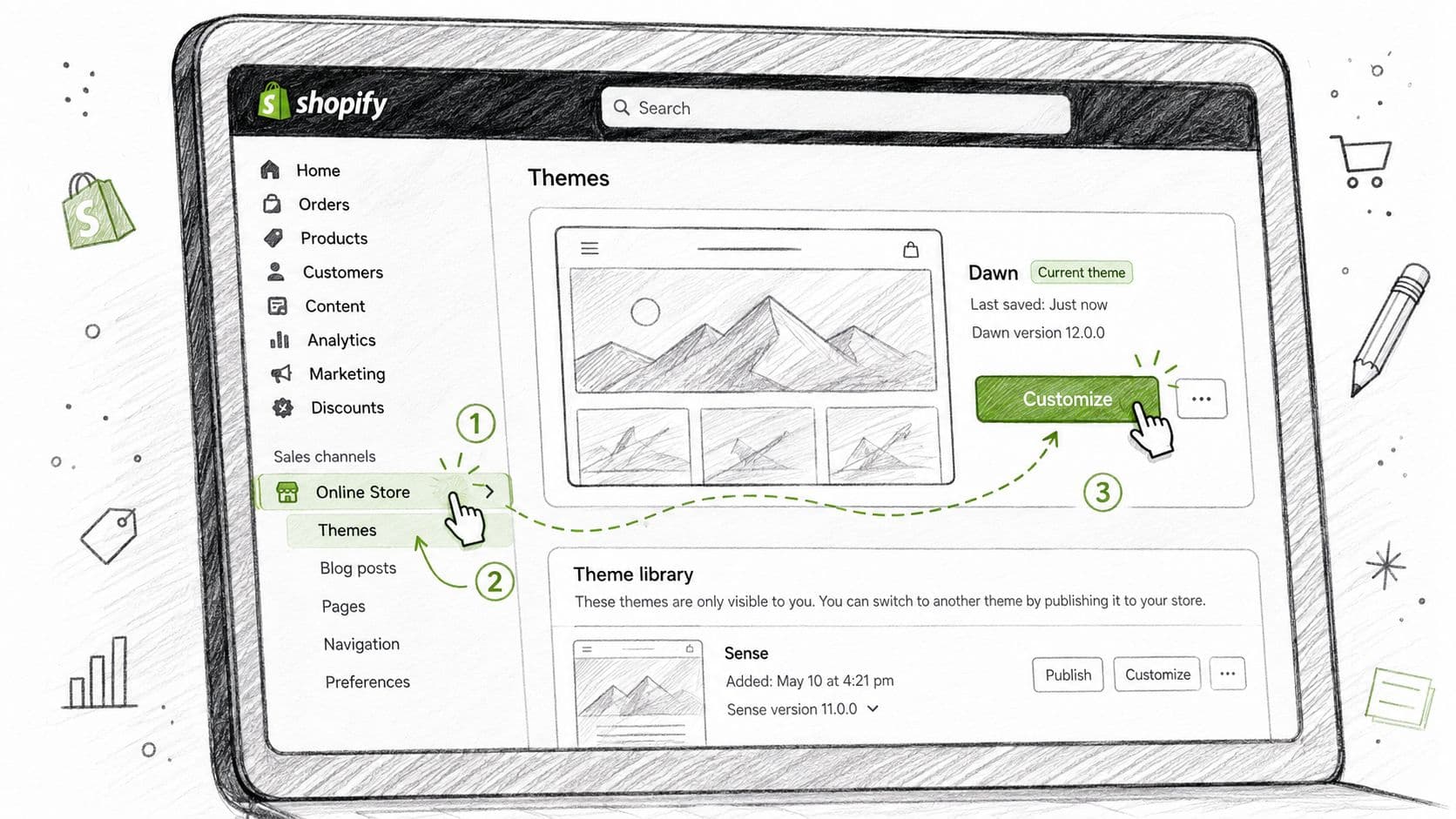
Shopify app embeds are the first place to look because they control whether the chatbot loads on the live storefront. Open Online Store > Themes > Customize for the active theme, then go to App embeds in the sidebar and confirm the Carti embed is enabled. If the app offers placement controls, make sure the launcher is assigned to the right area of the page, then save the theme and let Shopify publish the change.
The catch is that the theme editor can make an app look active while the published storefront still has it disabled. That's why the live domain matters more than the preview pane. Use a private browser window and test the home page and a product page on the actual storefront, not the theme editor.
If the embed is already on and the launcher still doesn't appear, check for duplicate app-embed blocks, old manual widget scripts, or a restored theme template that brought the problem back. In some stores, the fastest fix is rolling back to a known-good theme backup before the deployment that broke the widget. Also confirm the chatbot is assigned to the right template and visible in the right sales channel, because a bot can be enabled for the online store and still be absent where shoppers are browsing.
If the launcher shows up after enabling the embed, don't stop there. Test one real product question before you call it resolved.
Carti's install notes are useful when you want the exact click path for the active theme and app embed setup, and the install flow is documented in Carti's installation guide. A visible launcher only proves the script loaded. It doesn't prove the bot can fetch catalog data, authenticate correctly, or answer a shopper's question with current store context.
Test in an Incognito Mobile Window
Desktop testing hides too much. Logged-in sessions, browser extensions, cached scripts, and remembered consent choices can make a broken chatbot look fine. Open the live Shopify domain in an incognito mobile window, not the theme editor and not the app dashboard, then reproduce the problem on a clean session.
Start on the home page, then move to a product page, a collection page, the cart, and any promotional landing page that matters to your traffic. Watch for three things: whether the launcher appears, whether it stays clickable, and whether it opens the correct conversation. Send one simple product question and wait long enough to tell the difference between a slow reply and a hard failure.
Compare mobile data and Wi-Fi
Run the same test once on mobile data and once on Wi-Fi. A captive portal, corporate DNS filter, content blocker, or unstable network can interfere with widget scripts and API calls. If it only fails on one network, the problem is probably outside the Shopify theme itself.
If you're comfortable with browser tools, check the network panel after reloading the page. Failed requests, pending requests, canceled requests, and blocked third-party cookies usually tell you more than a blank launcher ever will. Then look at the browser console for JavaScript errors or mixed-content warnings.
The comparison that matters most is desktop width versus mobile width. If the chatbot works on desktop but not on mobile, investigate responsive placement, viewport behavior, and touch interaction. If it fails in both places, the embed or connection is the more likely culprit.
Carti's mobile testing guidance is straightforward enough to keep on hand when a merchant suspects a device-specific issue, and the reference point is Carti on mobile support. Record the device model, browser version, operating system, network type, tested URL, exact time, and the specific request or console error. That gives support something real to work with instead of a vague “it's broken on my phone.”
Resolve Overlap With Cart Drawers and Consent Banners
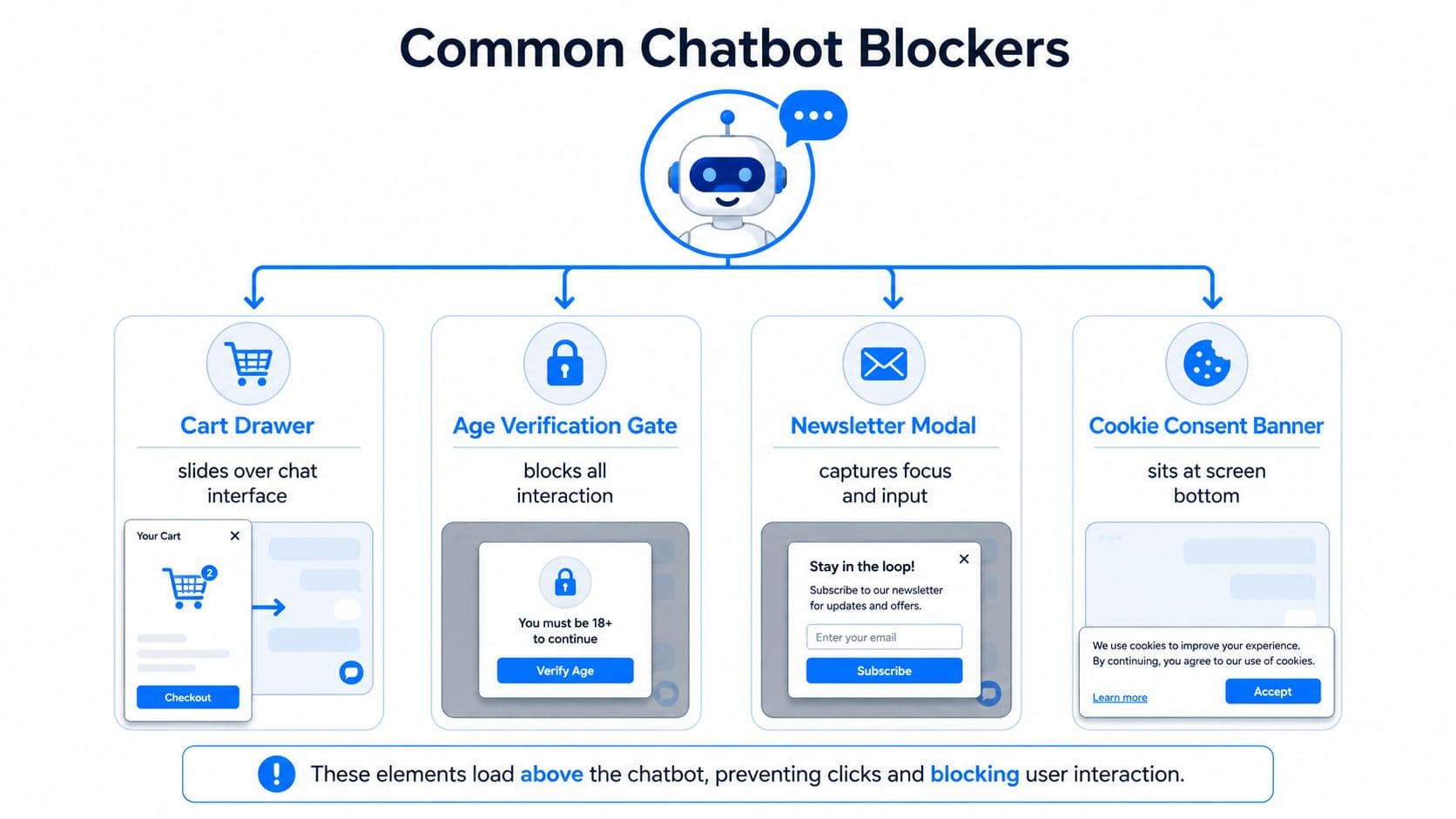
A chatbot can be loaded perfectly and still be unusable because something sits on top of it. Cart drawers, slide-out menus, age gates, newsletter popups, and cookie banners often capture focus or swallow taps, especially on mobile. On desktop, the button may look fine. On iOS Safari, it can be completely dead.
Check the layers that usually block clicks
The highest-conflict layers are the ones merchants install for revenue or compliance. Cart drawers from apps like Slideout Cart, Fast Bundle, and Rebuy often sit above the chat launcher right after add-to-cart. Consent managers using very high stacking order can block third-party scripts until the shopper interacts with the banner. Exit-intent popups and sticky announcement bars can also steal clicks or cover the launcher at the worst possible spot on the viewport.
Open the browser inspector and look for overlapping bounding boxes, high z-index values, and pointer-events settings. If the chat button is technically present but physically unreachable, that's a visual overlap problem, not a chatbot intelligence problem. Toggle one overlay app off for ten minutes, reload the storefront, and test again. That's usually faster than guessing.
Useful test: if turning one overlay off makes the widget clickable, you've found a causality link, not a coincidence.
Don't permanently disable a revenue-critical app just to prove the point. Adjust the chatbot position, shift the launcher higher, or reduce the overlay's stacking order if the theme allows it. Some stores only discover the problem after a theme update changes layout behavior, which is why overlap checks belong in every Shopify bot incident review.
For a visual reference, the common failure pattern is the same across carts, gates, and banners, they load above the chat surface and prevent interaction.
Verify Connectivity, API Access, and Bot Training
When the launcher opens but answers are generic, the failure is usually in the backend signals, not the storefront surface. Start with the access token in the chatbot admin. Confirm it hasn't expired, the required scopes are still present, and the install wasn't revoked during a permissions cleanup. Then check billing health, because a paused or unpaid subscription can stop catalog syncs.
The next place to look is the training or sync timestamp. If the catalog refresh is stale, the bot may answer with fallback language for new SKUs, changed prices, or recently added policies. Trigger a manual resync and confirm the store index updates cleanly before you assume the bot “knows” the latest catalog.
Here's a simple health view I use when merchants want to separate load problems from sync problems.
| Check | Where to Find It | Healthy Signal | Common Failure |
|---|---|---|---|
| Access token | App admin or connection settings | Active and authorized | Revoked, expired, or missing scopes |
| Billing status | Subscription or billing page | Subscription active | Paused or unpaid account |
| Catalog sync | Training or refresh tab | Recent successful refresh | Stale index, failed refresh |
| Webhook delivery | Shopify notifications or logs | Product updates arriving | Dropped or delayed webhooks |
| Bot response path | Live test conversation | Relevant answer or clean fallback | Generic “I don't know” on known products |
If you want a broader operations mindset, the CloudCops GmbH take on AI ops is a useful reminder that bots need ongoing monitoring, not just a one-time install. That matters because product updates, theme edits, and staff permission changes can all break a chatbot that looked stable yesterday.
Webhook failures are especially painful because they leave the bot answering yesterday's inventory. You won't always see a visible storefront error, only a pattern of wrong or stale responses. That's why catalog sync and notification logs belong in the same troubleshooting pass.
Test the Recovery and Capture the Right Evidence
Once you've made a fix, don't trust one happy-path test. Clear site cache, open incognito on desktop and mobile, and run three scripted questions. Use one known product lookup, one policy question, and one question that should trigger the fallback path. If the fallback path works, that's a good sign, because it means the bot can route unknown questions without hanging.
Conversation volume is the cleanest health signal in the dashboard. A flatline for a full day usually means the widget never loaded, not that shoppers suddenly stopped asking for help. That's why volume deserves more attention than an error report buried in admin.
Before you escalate anything, capture the evidence bundle that shortens back-and-forth. Include the embed toggle screenshot, console errors filtered by the app name, Network tab responses for the loader, the access token status page, and the conversation volume chart with timestamps.
A good support packet usually answers the first two questions before anyone asks them.
- What changed: theme switch, app update, script injection, consent manager, or a recent product sync.
- What failed: launcher missing, launcher blocked, message send failure, or generic fallback only.
- Where it failed: home page, product page, cart, mobile, desktop, or one browser only.
- What proved it: screenshots, console logs, network traces, and the conversation timeline.
Carti's playground testing flow is a good reference for the kind of repeatable reproduction that saves time, and the guide is testing Carti in the playground. The goal isn't to prove the bot is imperfect. The goal is to prove exactly which layer stopped it from helping shoppers.
Prevent the Next Outage and Contact Support the Right Way
The stores that stay healthy treat chatbot uptime like storefront uptime. Weekly smoke tests catch broken embeds before customers do. Alerts for conversation volume drops and embed status changes help you spot silent failures early. Training refreshes should follow catalog edits, and theme updates should be treated like release events, not casual tweaks.
One more habit pays off fast, pin the app version during theme work so you're not debugging two moving parts at once. If your chatbot supports self-monitoring, use it. A widget that verifies its own boot gives you a visible health signal instead of a quiet collapse.
When self-service doesn't solve it, open the support ticket from the chatbot dashboard Help menu and include the store domain, installed app version, theme name, last known working timestamp, browser and device details, and a short reproduction sequence. Attach the console log, Network tab HAR file, storefront screenshot, and an admin screenshot showing the embed toggle and bot status. That bundle gets first-response clarity much faster than a vague “please help.”
What speeds up resolution
- Store identity and setup: domain, app version, theme, and sales channel.
- Repro details: exact page, device, browser, and time.
- Evidence: console log, HAR file, screenshots, and conversation volume chart.
- Change history: what changed right before the failure.
What slows everything down
- Unclear symptoms: “It doesn't work” without a page or browser.
- Missing timestamps: no way to compare before and after.
- No logs: support has to guess where the break happened.
- No theme context: embed and overlap issues stay hidden.
For stores that want the support side monitored too, digna Business Monitoring is a reminder that automated visibility matters when issues are silent. The same principle applies to chatbots, if you can't see the failure, your shoppers feel it first.
FAQ
Why is the widget showing on checkout? That usually means the embed or placement rules are too broad, or the app is loading in a context it shouldn't. Check the theme settings and page targeting first.
Why does the bot only reply with fallback answers? That usually points to stale training data, sync problems, or a bad backend connection. Start with catalog refresh and token status.
Why does response latency spike suddenly? Latency often appears when the bot is waiting on a broken downstream request, a blocked script, or a slow network path. Test on mobile data and check the browser network tab.
Should I uninstall or reinstall the app? Reinstalling can help when the connection is corrupted, but it shouldn't be your first move. Capture the evidence first so you don't lose the clue that explains the failure.
Carti helps Shopify stores keep chatbot health visible instead of silent, which matters when a broken widget can hide for days. If your launcher is flaky, your answers are stale, or your shoppers keep hitting dead ends, visit Carti and check whether a self-monitoring chatbot fits the way your store operates.

Written by
Daniel AndersonFounder of Carti. 10+ years building ecommerce brands in apparel and supplements. Still runs a Shopify store and built Carti to help merchants convert more browsers into buyers.
Ready to boost your store's sales?
Install Carti in 5 minutes and let AI handle customer questions, recommend products, and close sales 24/7.
Start Free Trial14-day free trial