
You've got a Shopify store, an Instagram account that's finally getting traction, and a feed full of products people clearly want. They comment. They save posts. They reply to Stories. Then they vanish.
That gap is where most stores lose momentum. The problem usually isn't interest. It's friction. If people have to leave Instagram, hunt through your site, and find the exact product they just saw, too many of them won't finish the trip.
Connecting Shopify to Instagram fixes that, but only if you do it cleanly. I've seen merchants get stuck on the same issues over and over: the wrong Meta asset connected, catalogs rejected for compliance reasons, products failing to sync, or Shopping technically enabled but not set up in a way that drives sales. This guide focuses on getting the connection right the first time, then making it useful.
Why Connecting Shopify to Instagram is a Must in 2026
A lot of store owners still treat Instagram like a branding channel. That's outdated. If you sell visual products like apparel, beauty, home, or wellness, Instagram is part storefront, part discovery engine, and part conversion path.
Instagram Shopping launched in the United States on May 23, 2018, and became a major part of social commerce. Meta reports that 130 million users tap product tags every month, and eMarketer described the channel as a $21 billion commerce opportunity by 2023 in this overview of Instagram Shopping and Shopify integration. That's the business case in one line: people don't just browse there, they shop there.
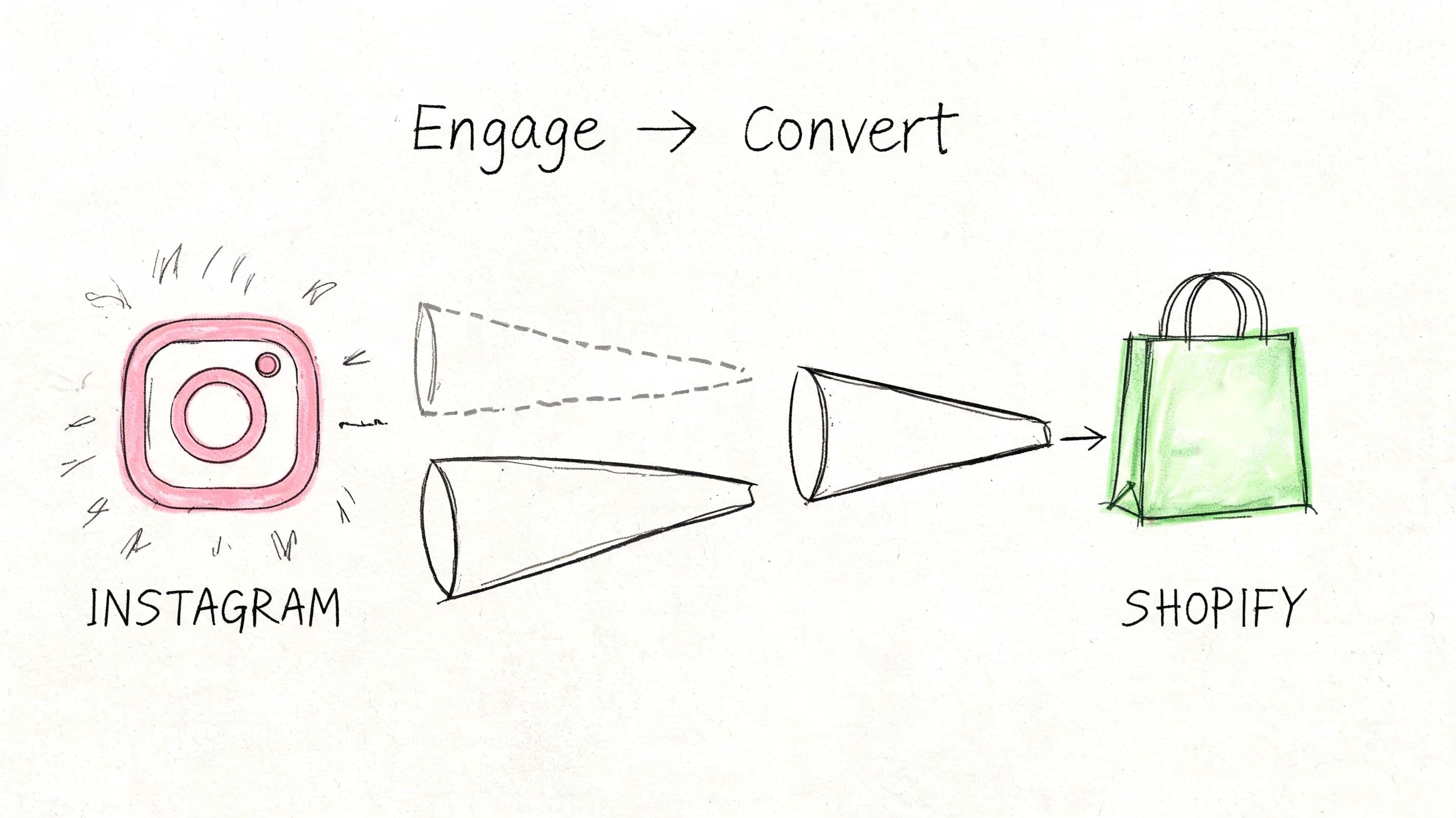
The stores that get value from Instagram don't rely on “link in bio” as the whole strategy. They shorten the path between inspiration and checkout. Product tags, synced catalogs, and cleaner attribution turn your profile from content into commerce.
That matters even more if your customer journey already starts on mobile. If you want a broader view of how mobile buying behavior affects conversion paths, this explanation of mobile commerce trends and buyer behavior is worth reading alongside setup work.
One more practical point. The connection itself won't rescue weak creative, poor product pages, or confusing offers. But without the connection, even strong creative leaks intent. If you're also tightening your acquisition side, these ClipCreator.ai strategies for online success pair well with Instagram Shopping because they address the front half of the funnel that drives people to your tagged content in the first place.
Instagram works best when discovery and purchase feel like part of the same action, not two separate sessions.
Preparing Your Accounts for a Seamless Connection
Most setup failures happen before anyone clicks “Connect account.” The merchants who have the smoothest rollout usually do the prep work first and treat this like infrastructure, not a quick app install.
Your pre-flight checklist
Meta needs clear ownership, clean business assets, and a compliant catalog. If one of those is shaky, approval slows down or breaks entirely.
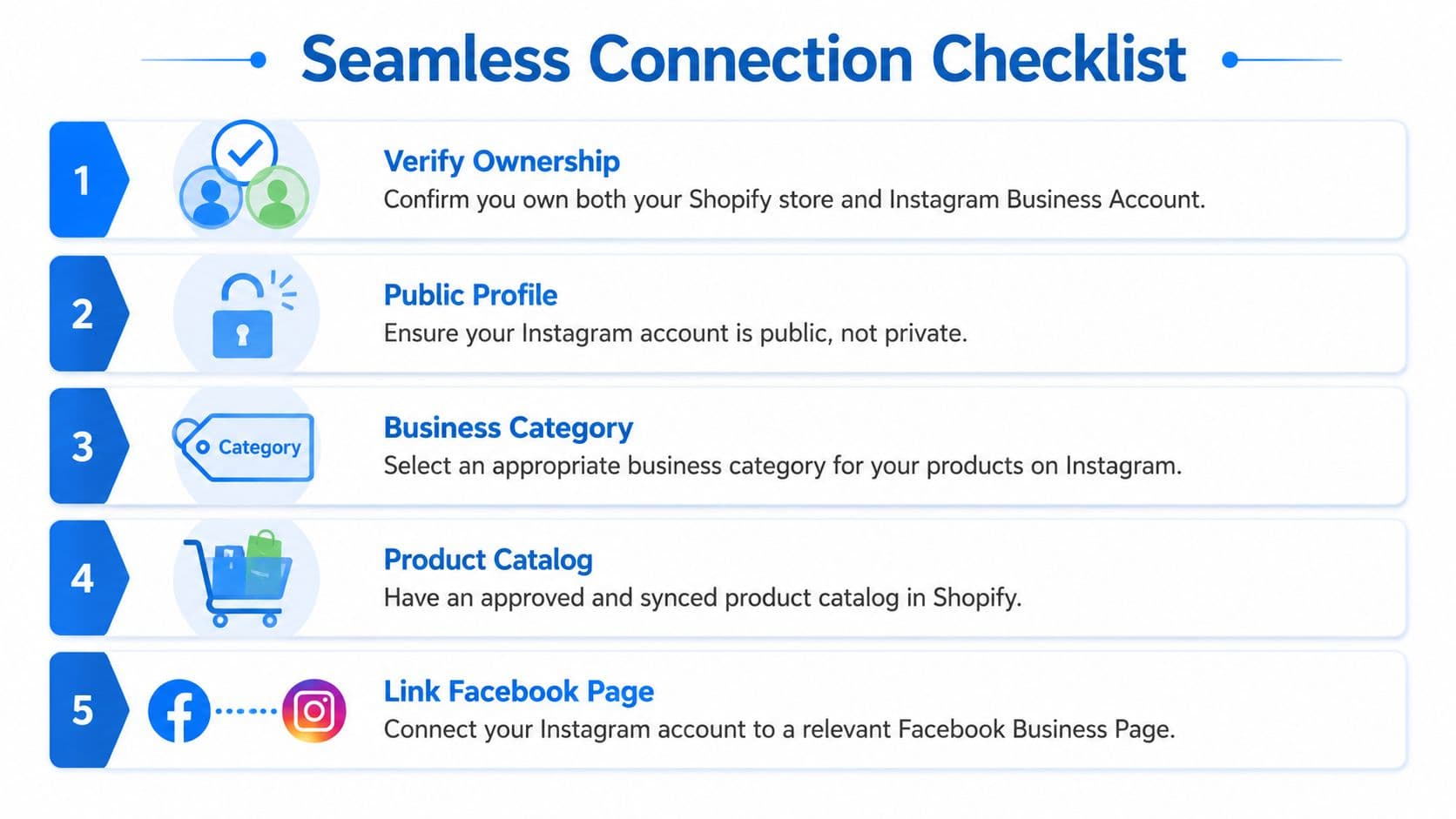
Before you try to connect Shopify to Instagram, make sure these pieces are in place:
-
Instagram Business account. Your Instagram account must be a Business account, not a personal profile. This is what enables product tagging, commerce settings, and the connection to Meta business assets. If you still need to switch account type, this guide for unlocking Instagram growth walks through the business-account change clearly.
-
Facebook Business Page linked to Instagram. This is where many merchants get tripped up. Shopify doesn't just connect to an Instagram login. It connects through Meta's business structure, which means your Instagram account needs to be attached to the correct Facebook Page and business portfolio.
-
Shopify catalog that's ready to sync. Product titles, images, variants, availability, and pricing should already look clean inside Shopify. If the catalog is messy in Shopify, it'll be messy in Commerce Manager.
-
Eligible products under Meta's commerce policies. If you sell products in regulated or sensitive categories, review eligibility before syncing. Approval issues often have less to do with technology and more to do with policy interpretation.
-
Public Instagram profile. A private profile creates friction and can block commerce features.
What trips approval before you even start
The biggest hidden issue is asset mismatch. The Instagram account is owned by one login, the Facebook Page by another, and the Commerce Manager catalog by a third. Shopify can't solve that for you. You need the right permissions across all assets.
A second issue is weak catalog hygiene. Variant naming matters. If a product appears in Shopify one way and arrives in Meta with inconsistent options, you're setting yourself up for tag problems later.
Practical rule: if your Shopify admin has confusing variants, missing images, or unpublished products mixed into the catalog, fix that first. Instagram Shopping exposes catalog problems. It doesn't hide them.
I also recommend checking your business details in Meta Business Suite before installing anything in Shopify. Confirm the business owns the Page, the Instagram account is assigned correctly, and the people doing setup have admin-level access. That five-minute check saves hours of retracing permissions later.
The Step-by-Step Guide to Linking Shopify and Instagram
This is the actual connection workflow. Done correctly, Shopify becomes the source of truth and Meta becomes the display and distribution layer.
Start inside Shopify
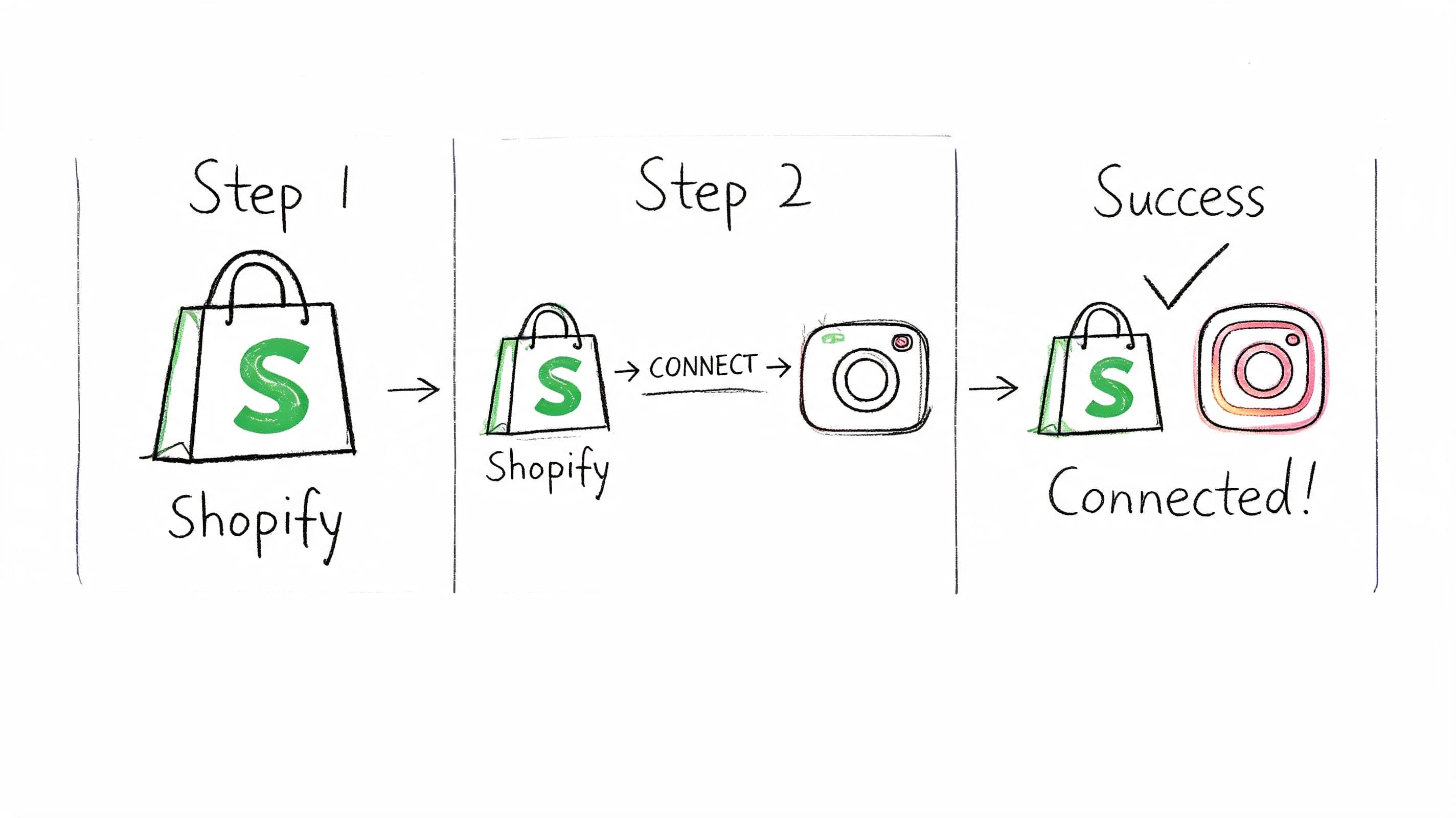
In Shopify admin, go to Sales channels and install the Facebook & Instagram channel if it isn't already active. Shopify's native flow is the cleanest route for most stores because it handles catalog sync and commerce setup in one place.
Then connect the Facebook login tied to your business assets. During setup, Shopify will prompt you to choose the correct business portfolio, Facebook Page, and Instagram account. Slow down here. Most connection errors start when someone selects the wrong Page because the names are similar.
Use this sequence:
- Open Shopify admin
- Go to Sales channels
- Add or open Facebook & Instagram
- Sign in to the Meta account that owns the right business assets
- Choose the business portfolio
- Select the connected Facebook Page
- Select the Instagram Business account
- Connect or create the commerce account and catalog
If you want platform-specific reference material while working through the setup screens, keep the Carti documentation library open in a separate tab for broader Shopify implementation workflows and app environment checks.
Choose the right Meta settings
Once the accounts are connected, Shopify will ask about data sharing. For most merchants, the best option is Improved. That setup supports stronger behavior tracking without creating unnecessary complexity.
Select Improved data sharing unless you have a specific compliance or operational reason to limit it.
You'll also handle checkout behavior in the Meta channel settings. Some merchants want native Instagram checkout where available. Others prefer sending traffic back to their Shopify store because they want more control over the buying experience, upsells, subscriptions, or post-purchase flows.
That's a trade-off, not a universal rule. In-app checkout reduces steps. Website checkout gives you more control. The right choice depends on your market coverage, fulfillment setup, and how much of your conversion stack lives on Shopify.
Finish the asset mapping carefully
The last part is the least glamorous and the most important. Confirm that the catalog tied to the commerce account is the one Shopify is populating. If you have multiple catalogs in Meta from old agencies, previous tests, or ad accounts, double-check this before submitting for review.
A clean final checklist looks like this:
- Business portfolio is correct
- Facebook Page matches the brand
- Instagram account is the one customers see publicly
- Commerce account is active
- Catalog is tied to Shopify, not an old feed
- Data sharing is configured
- No duplicate assets are competing
Later in the process, a visual walkthrough can help if you want to compare your screens against a live setup flow:
If you're wondering how to connect Shopify to Instagram without losing your mind in Meta's asset structure, this is the answer: let Shopify lead the setup, and verify every selected asset before you click through.
How to Activate Shopping and Tag Your First Product
Once the connection is live, the next job is getting your catalog approved and your first tagged content published, at which point the integration becomes visible to shoppers.
Submit the catalog and wait smartly
After the catalog sync is in place, Meta reviews your products before Shopping goes live. Approval is partly technical and partly policy-based. A technically correct connection can still stall if your catalog contains unclear product info, restricted items, or mismatched account ownership.
In the Instagram app, confirm that Shopping features appear under your professional settings once approval is complete. If they don't, don't start rebuilding everything immediately. First check whether the connected catalog in Commerce Manager is approved and whether the Instagram account is tied to the same business assets used during setup.
If Shopping isn't available after sync, the issue is usually asset alignment or catalog eligibility, not the Shopify app itself.
Tag products in posts stories and reels
After approval, create a post in Instagram and choose Tag Products before publishing. Search the synced catalog and select the matching item. The product should point back to the exact item you want customers to buy, not a broad collection page or near-match variant.
According to Shopify's 2025 data summarized here on syncing Shopify with social media, 75% of direct-to-consumer fashion and beauty merchants report a 15 to 25% conversion uplift from tagged Instagram Stories. That's why product tagging isn't a cosmetic feature. It changes buying behavior when used in high-intent placements.
Use tags deliberately across formats:
- Feed posts. Best for evergreen products, hero launches, and posts that will keep earning traffic over time.
- Stories. Strong for urgency, drops, restocks, and short buying windows.
- Reels. Useful when the product benefits from movement, demo, or before-and-after context.
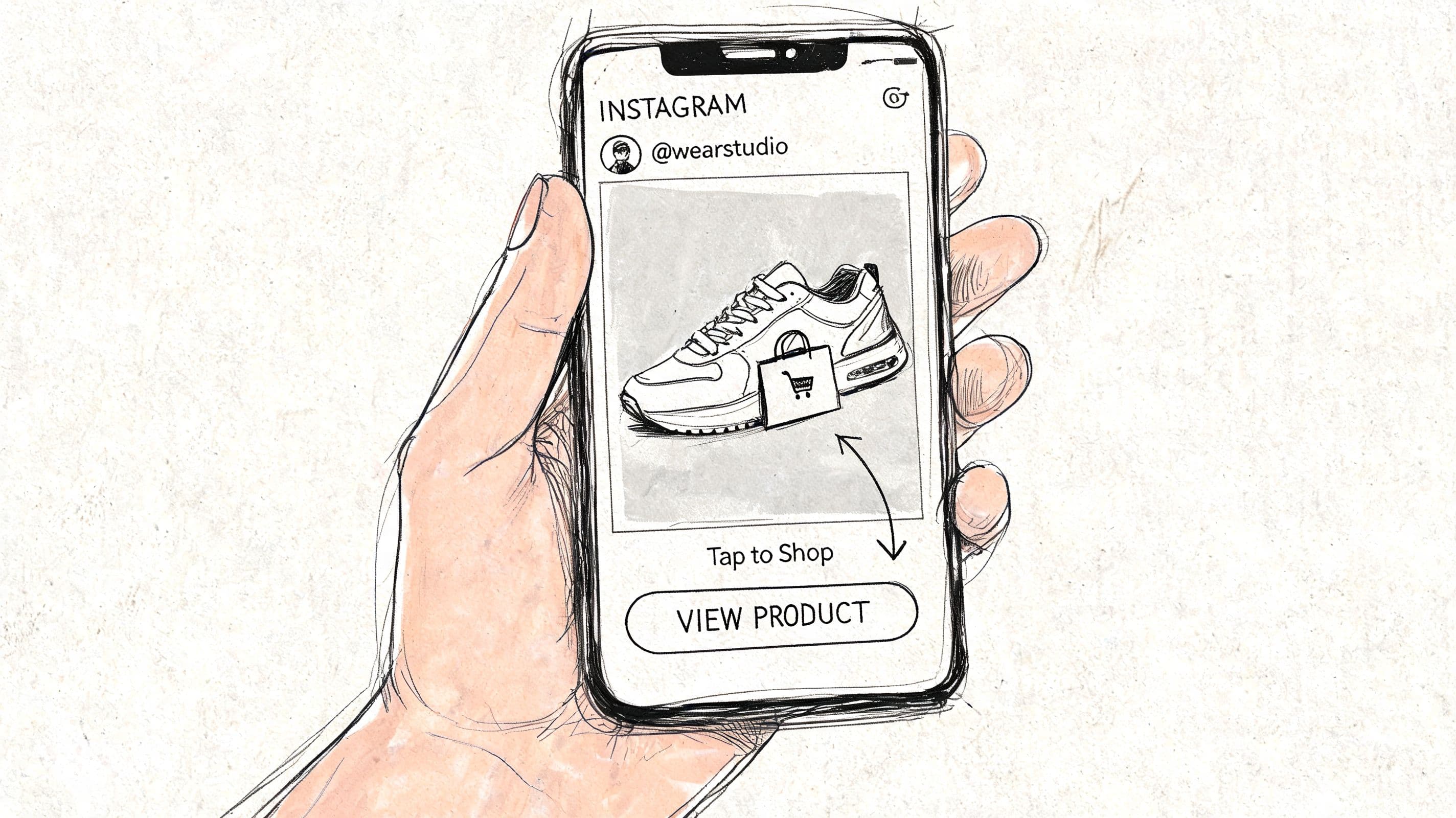
A few practical habits make tagging work better:
- Match the exact variant context. If the post shows the black version, don't tag the generic parent if the shopper expects the black variant.
- Keep the visual focused. Product tags perform better when the product is obvious and central, not hidden inside a busy lifestyle scene.
- Write captions that support purchase intent. Sizing guidance, material details, or usage notes often matter more than clever copy.
If checkout is available for your setup, test it yourself on mobile before sending traffic. Merchants often assume checkout is working because tags appear, but the handoff experience still needs to be checked end to end.
Fixing Common Connection and Product Sync Errors
Many merchants get stuck at this point, which is why basic tutorials fall short. They tell you to “wait for approval” when the actual issue is usually visible if you know where to look.
Data from Shopify Community threads, summarized in this guide on connecting Shopify to Instagram, shows that up to 30% of merchants run into “Products not syncing” issues during initial setup. In practice, that problem usually points to one of a few predictable failure points.
The fast diagnostic approach
Don't troubleshoot Instagram first. Start with the source of truth and move outward.
Check in this order:
-
Shopify product status
Confirm the product is active, available to the relevant sales channel, and fully populated with title, description, image, and price. -
Facebook & Instagram sales channel status
Open the sales channel in Shopify and look for sync warnings, review notices, or connection prompts. -
Meta Commerce Manager Review catalog diagnostics; ineligible products, feed issues, and rejected items usually surface there.
-
Meta Business Suite permissions
Make sure the Instagram account, Facebook Page, and catalog are assigned to the same business and accessible to the person managing them. -
Instagram app availability
If products are approved but not taggable, confirm you're logged into the correct Business account in the app.
Rebuilding the connection too early often creates duplicate catalogs, which makes the real problem harder to find.
Common Instagram Sync Errors and Fixes
| Error/Symptom | Likely Cause | How to Fix |
|---|---|---|
| Products not syncing | Product isn't available to the sales channel, catalog sync stalled, or product data is incomplete | In Shopify, confirm the product is active and available to Facebook & Instagram. Then open the sales channel and retry sync. Check Commerce Manager diagnostics for item-level issues. |
| Instagram business account not recognized | Instagram isn't correctly linked to the Facebook Page or business portfolio | In Meta Business Suite, verify the Instagram account is assigned to the business and connected to the right Page. Reconnect through Shopify only after permissions are clean. |
| Catalog rejected or products marked ineligible | Product category or listing details conflict with Meta commerce policies | Review flagged items in Commerce Manager, remove or edit non-compliant products, then resubmit the catalog. |
| Product tag not available in Instagram post composer | Approval isn't complete, wrong account is logged into the app, or catalog isn't attached to that Instagram account | Check account login in Instagram, confirm Shopping is enabled, and verify the catalog is the same one connected during Shopify setup. |
| Variant mismatch when tagging | Variant names or option structures are inconsistent between Shopify and the synced catalog | Clean up variants in Shopify, standardize option names, and refresh the sync so Instagram pulls the corrected structure. |
| Review taking too long | Approval queue or unresolved compliance issue | Check diagnostics instead of waiting blindly. If nothing is flagged, give the review process more time. If products are flagged, fix those before resubmitting. |
A practical pattern shows up again and again. Merchants assume a red error in Instagram means the problem lives in Instagram. Usually it doesn't. The underlying issue starts in catalog data, permissions, or asset mapping upstream.
If you have to reconnect, do it carefully. Remove confusion first. Know which business owns the Page, which catalog should stay active, and which Instagram account is the live one. Otherwise you can “fix” the connection and end up with a second broken setup.
Turn Instagram Traffic into Sales with Smart Optimization
A live connection is only the starting point. Plenty of stores get Instagram Shopping working and still underperform because they stop at setup.
The key shift is this: treat Instagram Shopping as a conversion path, not a posting feature. According to Meta's Q4 2025 data and Shopify's 2025 benchmarks cited in this video breakdown of Instagram sales behavior, 65% of Instagram sales come from Stories and Reels, while social checkouts show a 25% cart abandonment rate. That tells you two things. First, short-form and in-the-moment formats matter most. Second, a tap on a product is not the same as a sale.
Focus on the formats that actually convert
If your team is still putting most effort into polished feed posts, shift some of that energy toward Stories and Reels. These formats meet buyers closer to the moment of impulse and often create a cleaner path from interest to action.
That doesn't mean lower standards. It means different standards:
- Stories should remove hesitation. Answer the obvious question in the frame itself. Size, texture, use case, color, or shipping note.
- Reels should show the product doing its job. Movement, transformation, fit, and context matter more than static beauty.
- Tagged content should align with the landing experience. If the creative highlights one feature, the product page should reinforce that same feature immediately.
Creative quality still matters. If you need better visuals without slowing down production, this look at AI tools for product imaging is a useful resource for improving product presentation across social formats.
Reduce the drop-off after the tap
A lot of Instagram traffic is curious, not fully decided. These shoppers click with momentum, then pause once they hit product pages, shipping details, or checkout friction. That's where optimization work pays off.
Here are the changes that usually move the needle fastest:
- Tighten product pages for mobile. Put the clearest buying information near the top.
- Match message to destination. If the Story says “restocked,” the page should confirm that immediately.
- Use retargeting and recovery flows. Social traffic leaves quickly, so follow-up matters.
- Track where hesitation happens. Product view, add-to-cart, and checkout drop-off tell different stories.
If abandoned social traffic is a recurring issue, this practical guide to recovering abandoned carts on Shopify is worth applying to visitors coming from Instagram specifically, because their buying behavior is often faster and less patient than search-driven traffic.
The stores that win here don't just connect Shopify to Instagram. They build a path that survives mobile attention spans, quick exits, and shopper hesitation.
Frequently Asked Questions About the Shopify-Instagram Integration
Can I use website checkout instead of Instagram Checkout
Yes. Many merchants do. Website checkout gives you more control over your Shopify experience, including upsells, bundles, subscriptions, and post-purchase tools. Instagram Checkout can reduce friction where available, but it isn't automatically the better option for every store.
Can I tag products in Reels and Stories
Yes, if your catalog is approved and Shopping is active on the correct Instagram Business account. In practice, these formats often matter more than standard posts because they capture stronger in-session intent.
How long does it take for product changes in Shopify to appear on Instagram
Usually the catalog updates through the Shopify and Meta sync rather than requiring manual edits in Instagram. If changes don't appear, check the sales channel status in Shopify and the catalog diagnostics in Commerce Manager before you do anything drastic.
Why can't I see products when I try to tag them
The usual causes are incomplete approval, the wrong Instagram account logged into the app, catalog issues, or a mismatch between the Instagram account and the connected business assets. Start by checking asset ownership and catalog status.
Can I hide certain products from Instagram without deleting them from Shopify
Yes. The cleanest method is to control what's available to the Facebook & Instagram sales channel or adjust visibility through your Meta catalog setup. This is useful when certain items aren't suitable for social commerce or need to stay off-platform temporarily.
Do I need a Facebook Page even if I only sell on Instagram
In most Shopify setups, yes. Meta's business structure still relies on the Facebook Page connection as part of the asset chain behind Instagram Shopping. Skipping that layer is one of the most common reasons merchants get stuck during setup.
If Instagram is already bringing attention to your store, don't let that traffic stall at product pages or checkout. Carti helps Shopify brands turn that interest into revenue with instant answers, product recommendations, and proactive cart recovery, all without adding support workload.

Written by
Daniel AndersonFounder of Carti. 10+ years building ecommerce brands in apparel and supplements. Still runs a Shopify store and built Carti to help merchants convert more browsers into buyers.
Ready to boost your store's sales?
Install Carti in 5 minutes and let AI handle customer questions, recommend products, and close sales 24/7.
Start Free Trial14-day free trial